
Campus Network Connection Script
Timeline
2025-10-09
init
First enable wlan, then connect to the campus network. For Raspberry Pi:
1 | sudo raspi-config |
Then under System Option, Wireless LAN, enter the ssid and passphrase.
Or write to /etc/wpa_supplicant/wpa_supplicant.conf:
1 | ctrl_interface=DIR=/run/wpa_supplicant GROUP=netdev |
Then restart the wpa_supplicant service:
1 | sudo systemctl restart wpa_supplicant |
After the above steps, use ifconfig to check whether wlan’s inet has an IP address. If so, you are connected to the campus network, and the next step is authentication.
If it didn’t work, run the following command to check the logs:
1 | journalctl -u wpa_supplicant -n 50 --no-pager |
Packet capture:
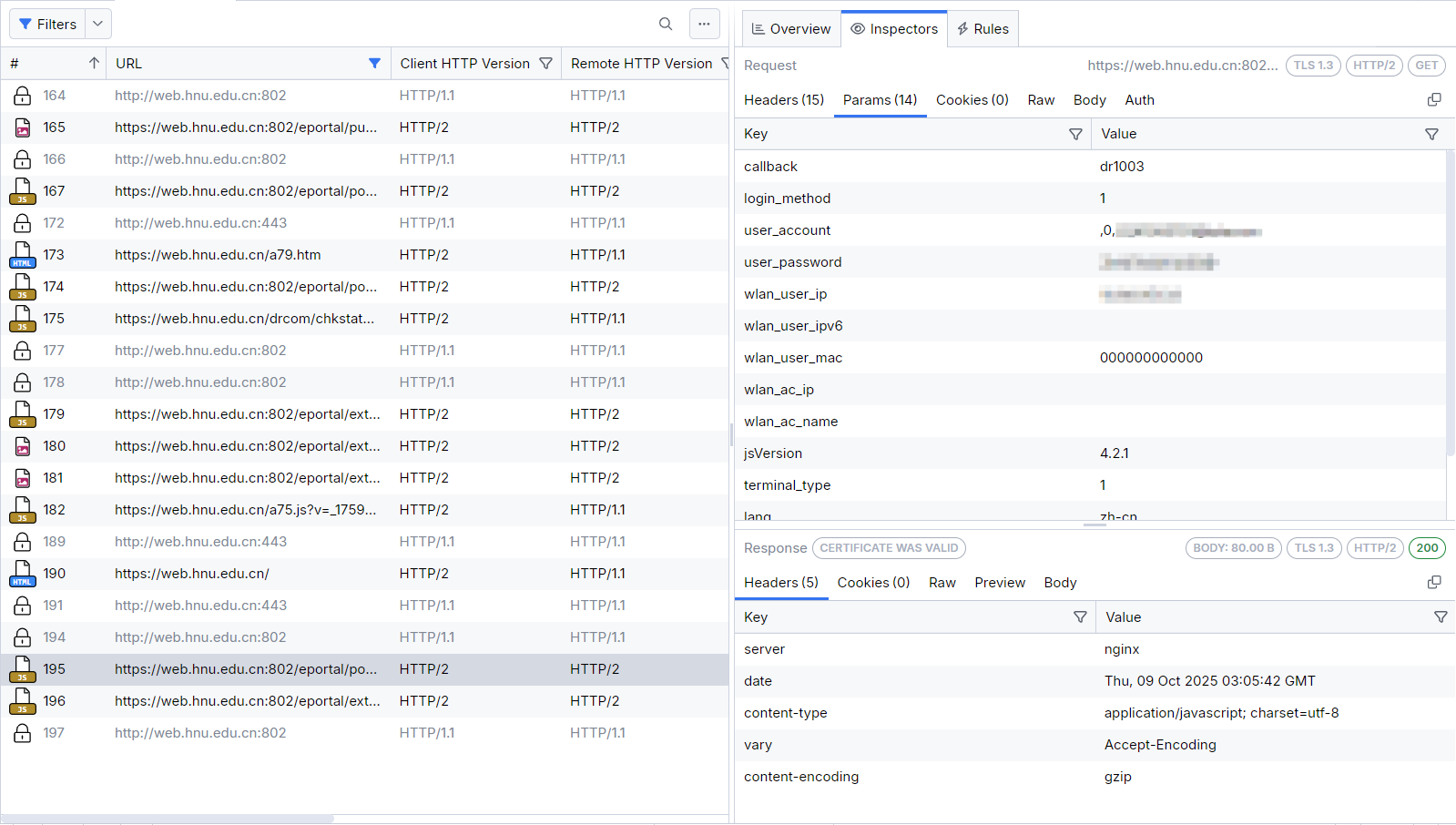
From the packet capture, the following script can be written:
1 | # First get wlan0's IPv4 and MAC |
After running the above script, test whether the connection is successful:
1 | ping www.baidu.com |
All articles on this blog are licensed under CC BY-NC-SA 4.0 unless otherwise stated.
Comments